




















Medit Support & Training
Step-by-step videos for the Medit i500, i600, i700 and i900 — from first install to implants, dentures and Medit apps.
Your onboarding checklist
Follow these steps in order. Once you’re done, practice on a few cases and schedule your Level 1 and Level 2 training.
- Go to Meditlink.com and Register as a Clinic Administrator
- Download and Install the Meditlink Software Application
- Unpack your camera and connect it to your computer and make sure you can turn on your scanner.
- Configure your computer. (If you are not comfortable doing this, we will do it for you remotely)
- Download Teamviewer
- Log-In to software and navigate between the Dashboard, the Case Box, the Order Box, and the Settings Box.
- Watch the video on Imaging Fundamentals, practice imaging some stone models, and practice imaging on some patients, ideally team members or family member.
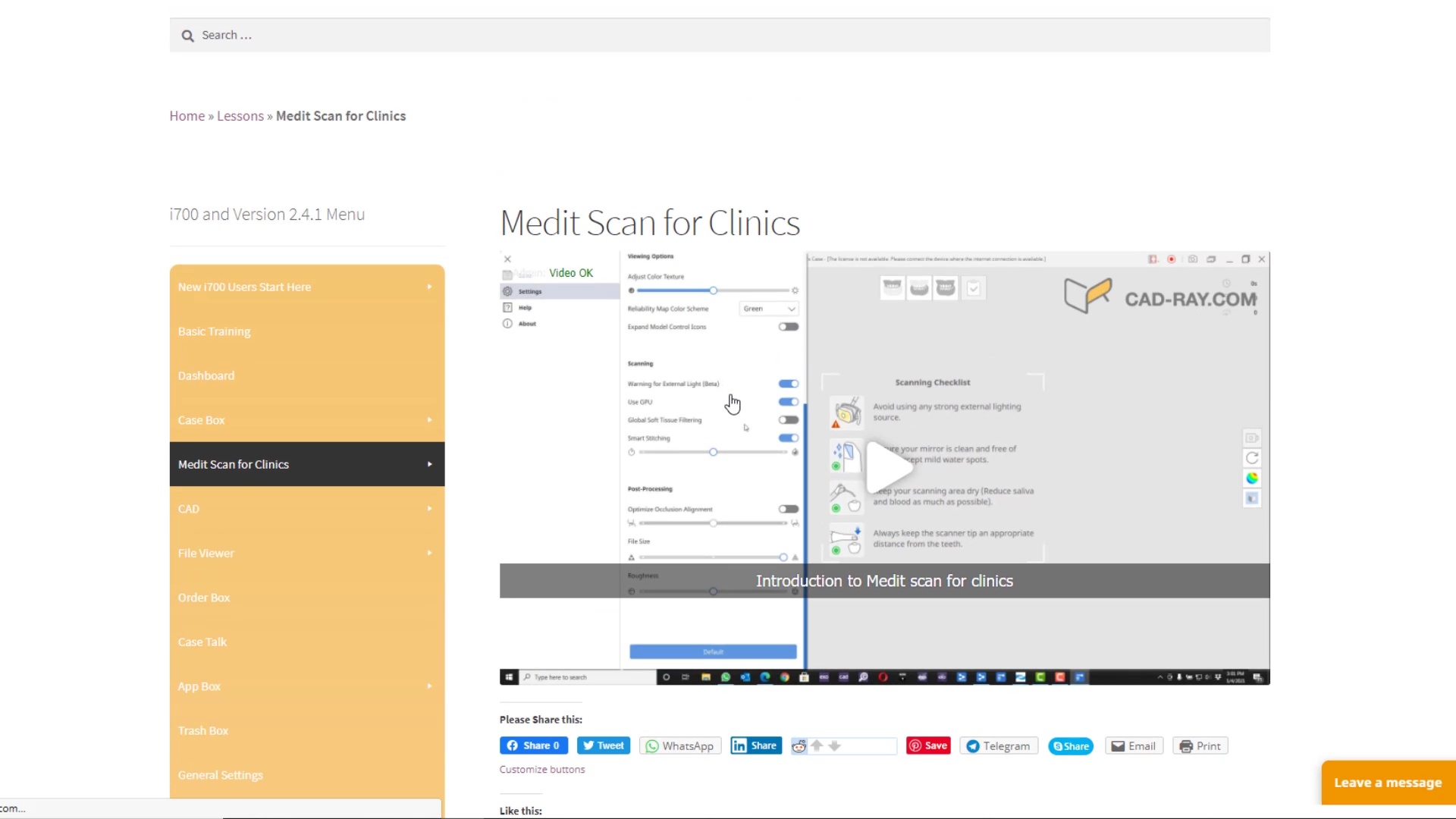
How to use this site and the tutorial library
Getting Started
Install, log in and find your way around Medit Link.
Scanning Technique
Scan paths, reliability maps, difficult surfaces and accuracy.
- Imaging Fundamentals
- Translucent vs Reflective Surfaces
- Introduction to Scanning
- How the Medit Works
- Catalog Boxes & Import Scan Data
- Clinical Aids – Smart Color Filter
- Scan Path
- The Reliability Map
- Full Arch Imaging Technique Review with Live Video Playback
- Smart Scanning / Segmental Scanning
- Scanning Metal Surfaces
- Distortion of Models from Overhead Light Effects
- Copy Function
- Verifying Accuracy of A Large Span 3D Model
Bites & Occlusion
Capturing bites, multiple bites and distal extension cases.
- Buccal Bite
- Capturing the Bite Clinically
- Multiple Bites
- Image Mesial to Distal for Ease of Bite Capture
- 3D Buccal Bite and Multiple Bites
- Measure Clearance with 3D Buccal Bite
- Multiple bites and prep modification
- Correcting a Mal-Aligned Bite
- Distal Extension Bites
- Common Distal Extension Problems
- Managing Occlusion and What Types of Buccal Bites to Take
Dentures, Impressions & Appliances
Edentulous scanning, triple trays, denture duplication and oral appliances.
- Impression Scanning – Triple Tray
- Mistake in Triple Tray Scan
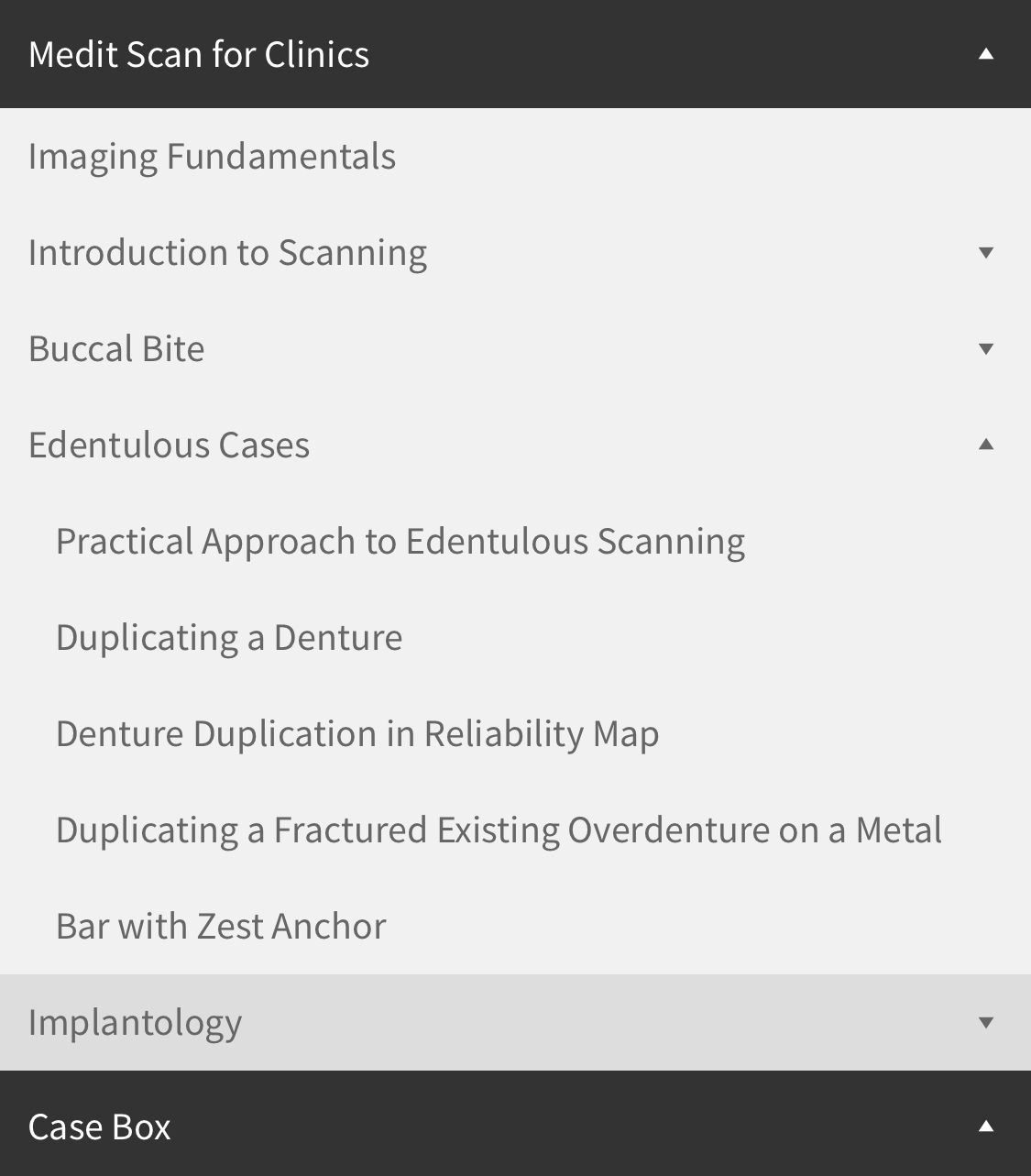
- Edentulous Cases
- Practical Approach to Edentulous Scanning
- Alternate Triple Tray Technique with Medit Compare and Full Arch Edentulous
- Duplicating a Denture
- Denture Duplication in Reliability Map
- Duplicating a Fractured Existing Overdenture on a Metal Bar with Zest Anchor
- Retrofit a New Crown to Oral Appliance
- Imaging for Oral Appliances
- Import and Modify Models for OSA
Implants & Scanbodies
Scanbodies, AI abutment matching and full-arch implant cases.
- Implantology
- Full Arch Scanning for Implant Planning and Restorations
- Introduction to Implant Scanbodies
- Features and Limitations of Scanbodies
- Scanbody Ghosting Error
- Common Source of Confusion with Scanbody Scan
- Common Problems With Scanning Multiple Implant Scanbodies
- Impact of Profound Camera Angulation on Accuracy
- AI Implant Suprastructure ID System
- AI Scanbody Matching
- Adding Scanbody Libraries to Medit’s AI
- AI Direct Abutment Matching
- DESS C-Base Brochures, Catalogs, and STL files for Abutments
- Creating and Merging a Tibase STL
- Replacing a Fractured Abutment Crown with AI Feature
- Advanced Topics
- Converting a Physical Impression Coping to a Scanbody
- Digital Pour Up and Impression Coping Conversion to a Scanbody
- Scanning the Fixture Itself
- Straumann Soft Tissue Fixture and DESS Scanbody
- Finding the Implant Level from Reverse Engineering a MUA
- Introduction to Full Arch Multi Unit Abutment Matching
- Dual Edentulous Arches with AI Match of Implant Suprastructures
Face Scan & CT Import
Importing face scans, CT data and merging complex models.
Medit Apps & Tools
File Viewer, Medit Compare, Model Builder, Crown Fit and more.
- File Viewer
- Advanced Functionality with File Viewer
- Sample Case for Implant Planning Using Cut Tool
- Duplicating Models and Renaming Them in File Viewer
- Case Talk
- Medit Share
- App Box
- Medit Compare
- Relating Models to each other in Medit Compare
- Merging Models Together and Maintaining Their Spatial Relationships
- Merge Overdenture Intaglio in Medit Compare
- Merge Models Together Hybrid Case Exercise
- Duplicating Overdentures to New Vertical and Medit Compare
- Merging iCAM4D Output Files With Intraoral Scans in Medit Compare
- Model Builder
- Model Builder with Other Scanners
- How to Use Model Builder
- Crown Fit App
- Model Check
- Fit Checking a Full Arch Zirconia Bridge
- Ortho Simulation
- Smile Design
- Temporary Crown App
CAD & Design
Implant planning, exocad workflows and sample design cases.
Settings & Troubleshooting
Storage, export options, connected programs and clearing cache.
Still stuck? Our support team can help by phone or remote session.
Contact Support